Topology
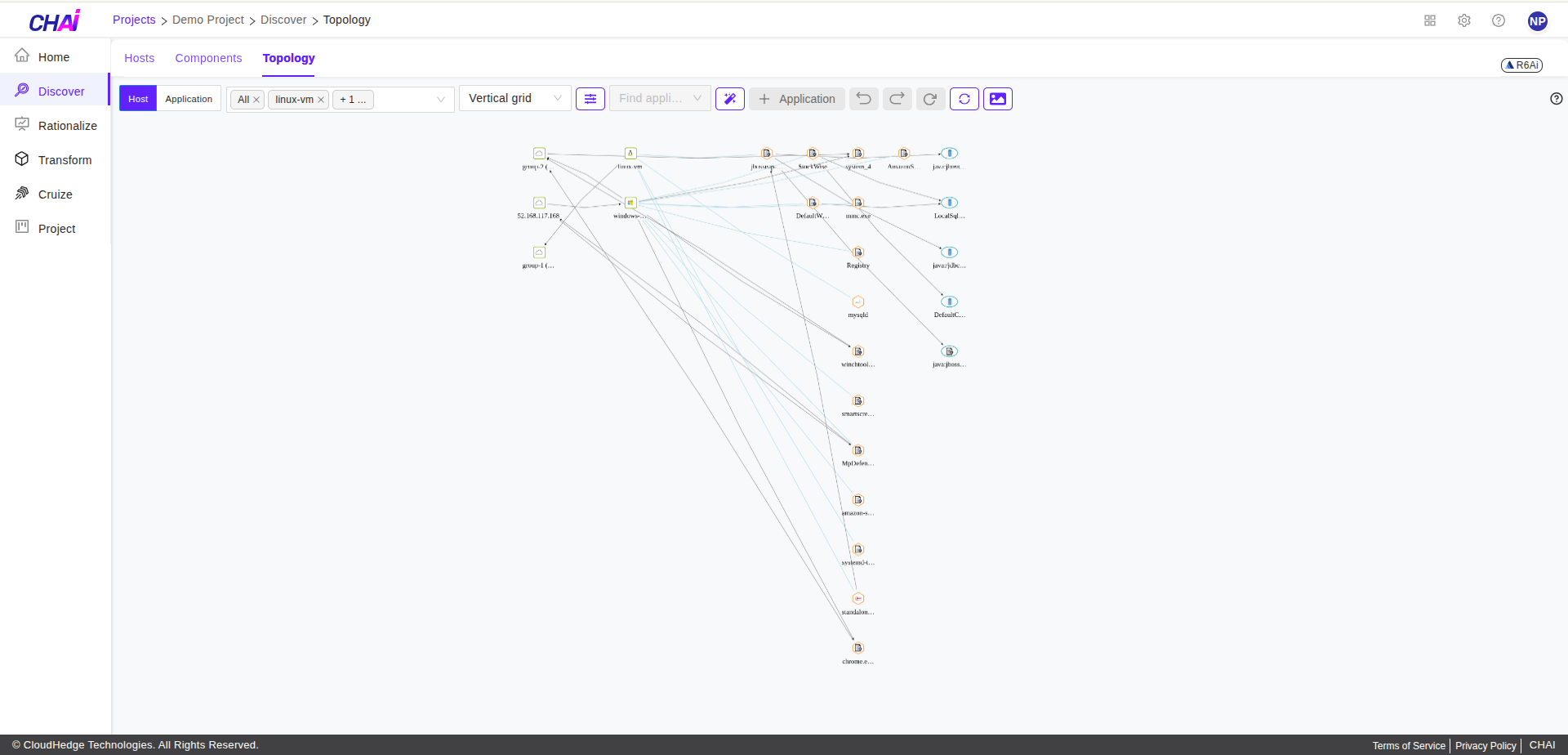
Topology shows the connections between the nodes and their processes.
What You Can View in Topology
1. Topology in Different Views
- Host view
- Application view
2. View Component Details
View process details, host details, or application details by double-clicking on any process, host, or application in the topology.
To Begin with Topology
- You can view the topology of discovered nodes. To view better topology, first complete the discovery and analysis of processes and then view the topology, but you can view the topology for partially discovered nodes as well
- You can view the same topology in the associated report as well. Please click here to learn more about reports
Go to Topology
Step 1: Open Project
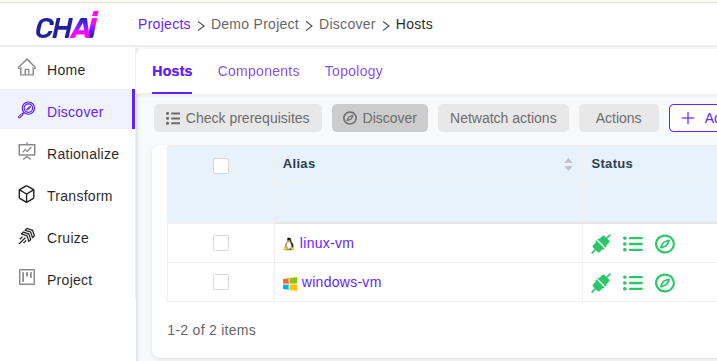
Open the project which was previously added and click Discover.
Step 2: Navigate to Topology Tab
Click the Topology tab as shown in the image below.
View Legend
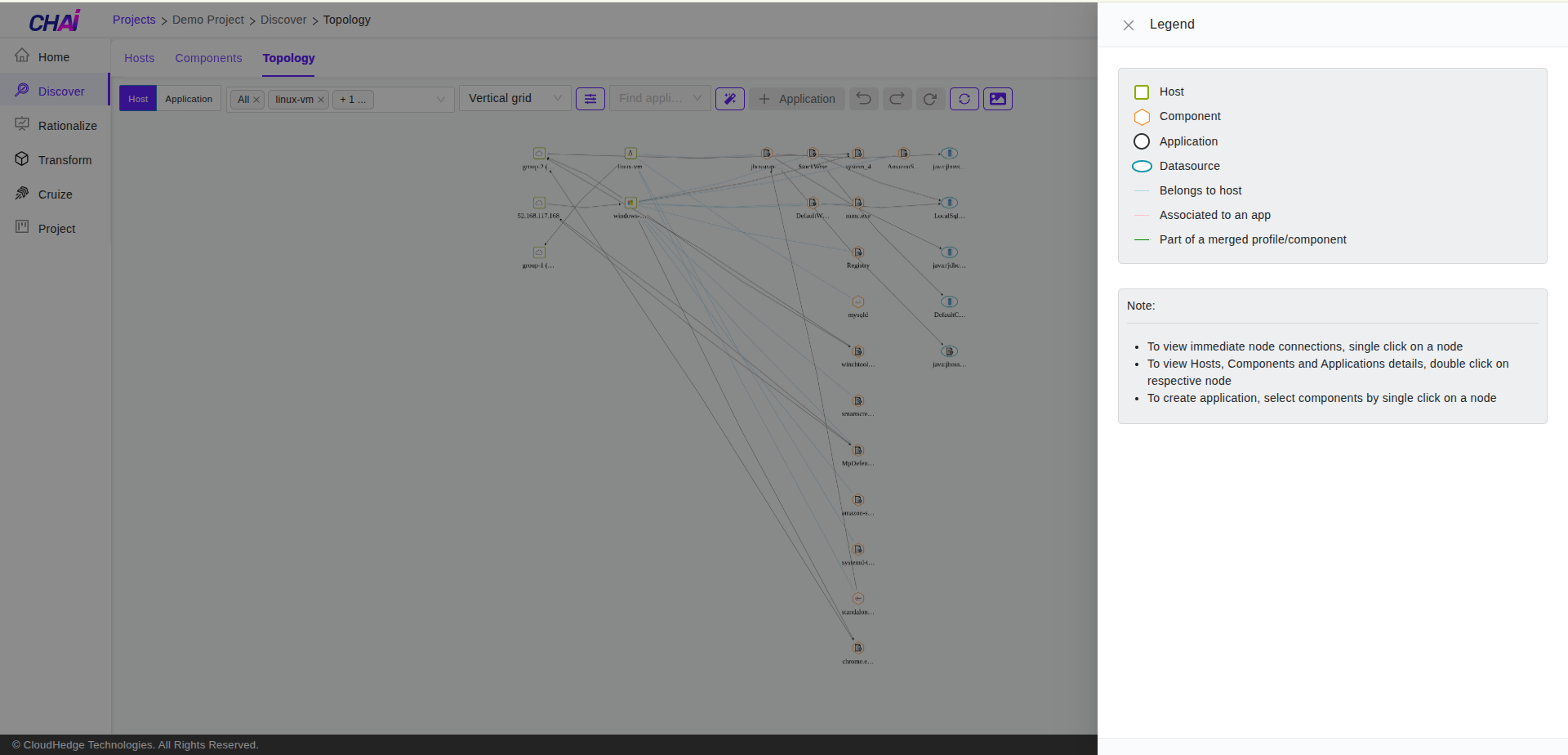
You can click Legend to get information about the different shapes shown in the topology page and usage details.
Views of Topology
You can view topology in two views:
1. Host View
The topology by the hosts in the project that you have created with their associated processes. Please click here to learn more about hosts.
2. Application View
The topology by applications that you create and link to different processes. Please click here to learn more about applications.
Note:
Prerequisite to view topology in the application view is that you have application(s) created and linked them with processes.
Host View
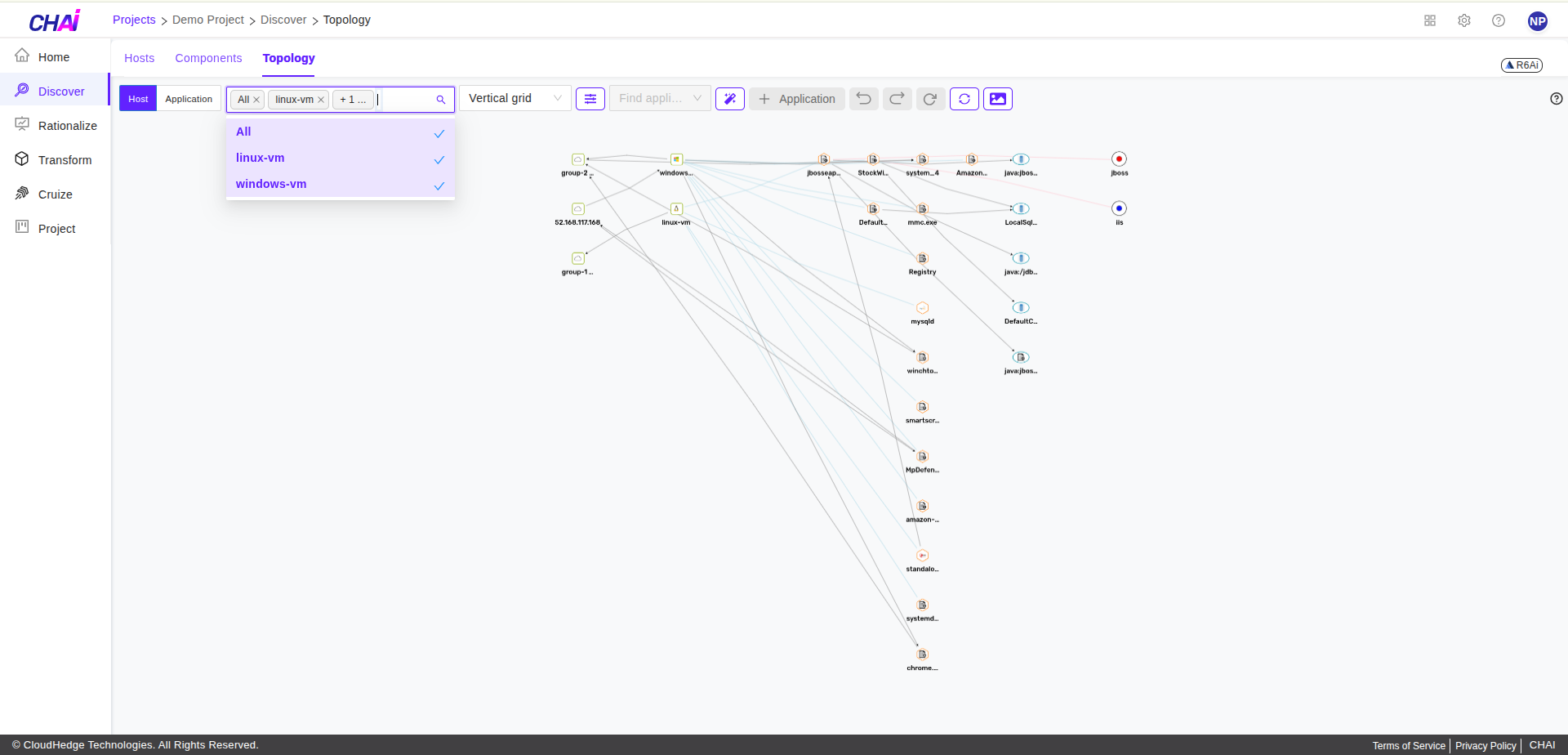
View the topology by hosts present in a selected project.
- By default, you can see all the host(s)
- You can view specific host(s) also with the help of the provided filter
Example:
The above image has only 1 host in the project and it has multiple processes associated with it.
Application View
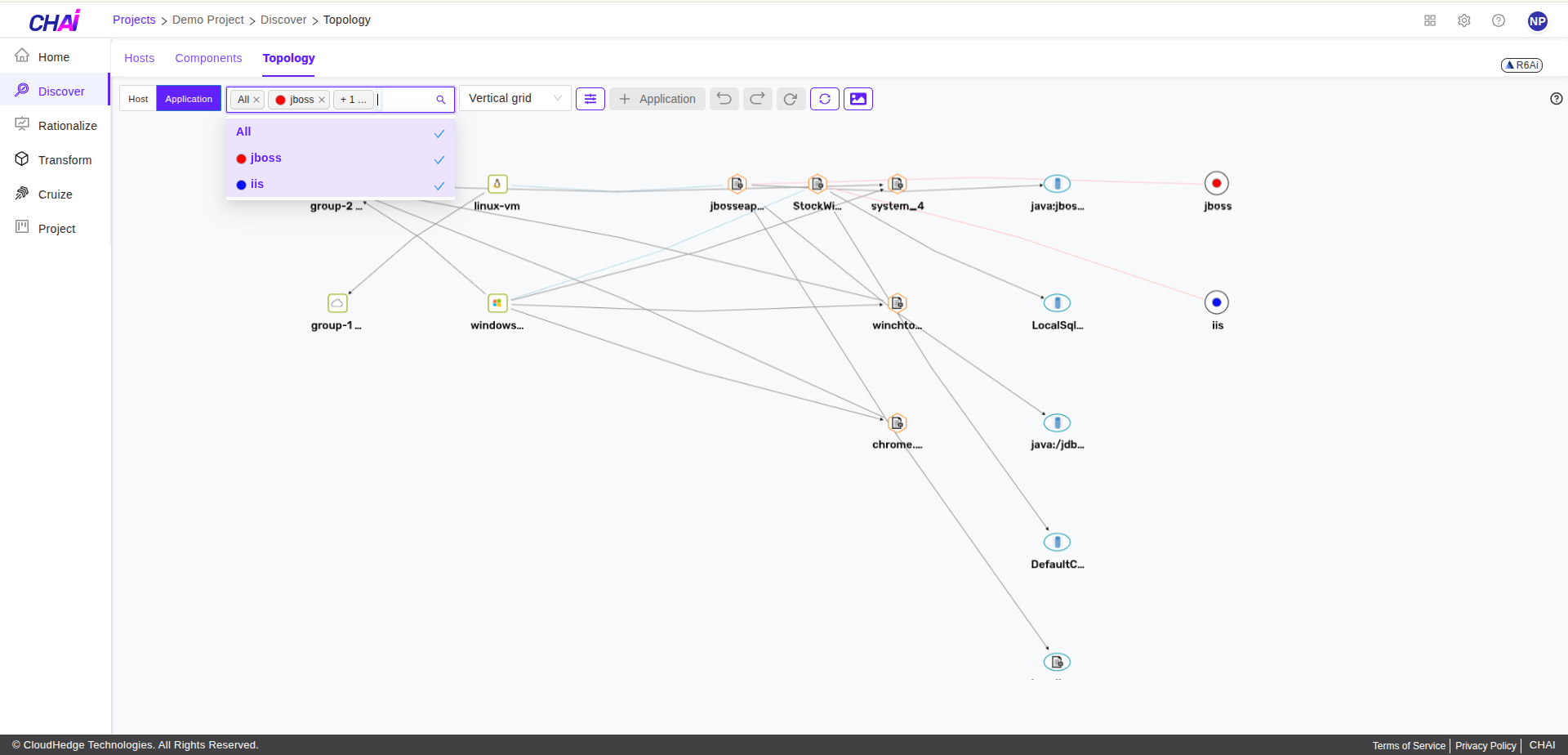
View the topology by application(s) which you have created and linked with different processes.
- As mentioned in host view, by default you can view topology of all applications
- You can view specific application(s) also with the help of the provided filter
Note:
You can see only those processes which are linked to the selected application(s).
Customize View in Topology
Change Layout
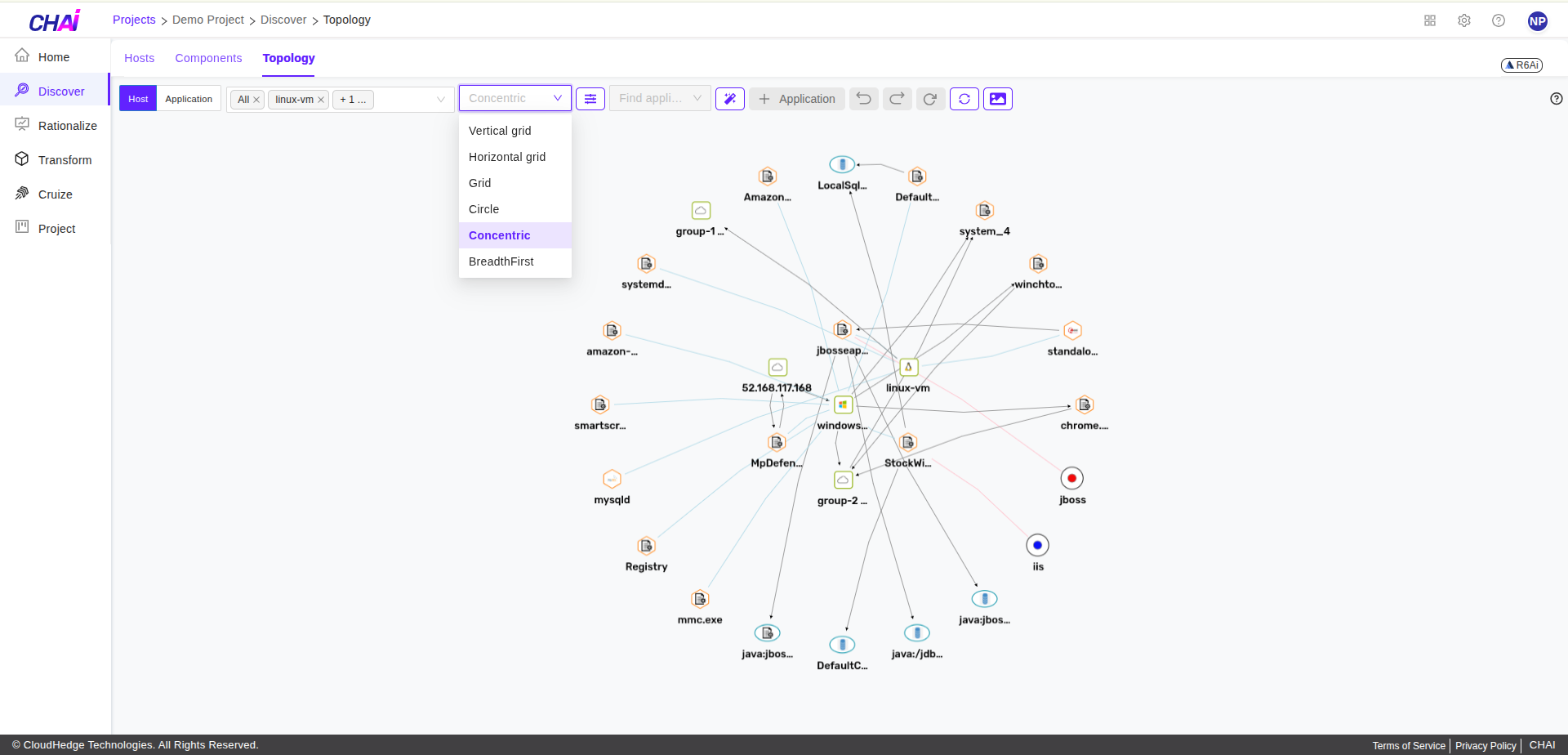
You can change the layout by clicking the dropdown beside the host/application filter and selecting a different view/layout.
Display Only Nodes
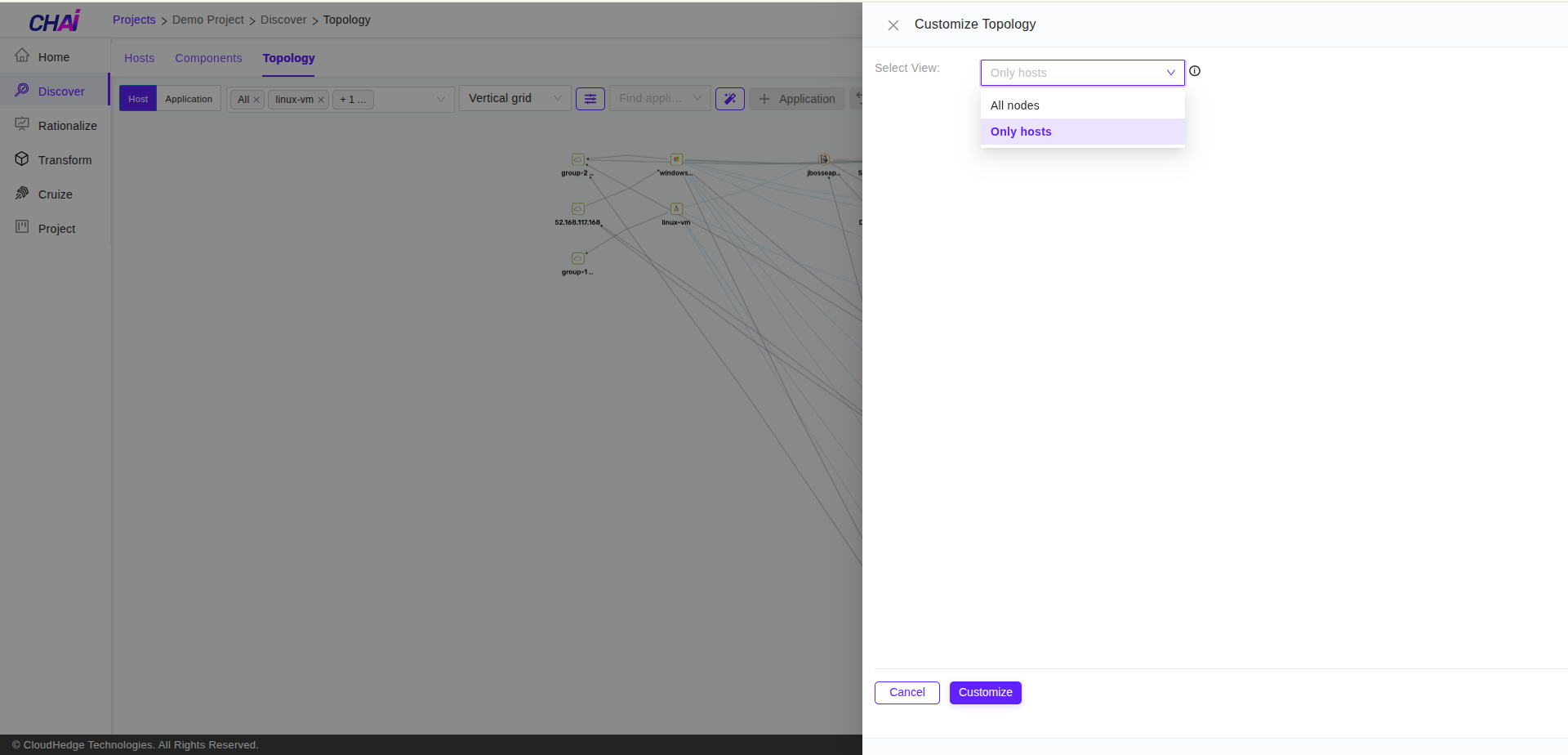
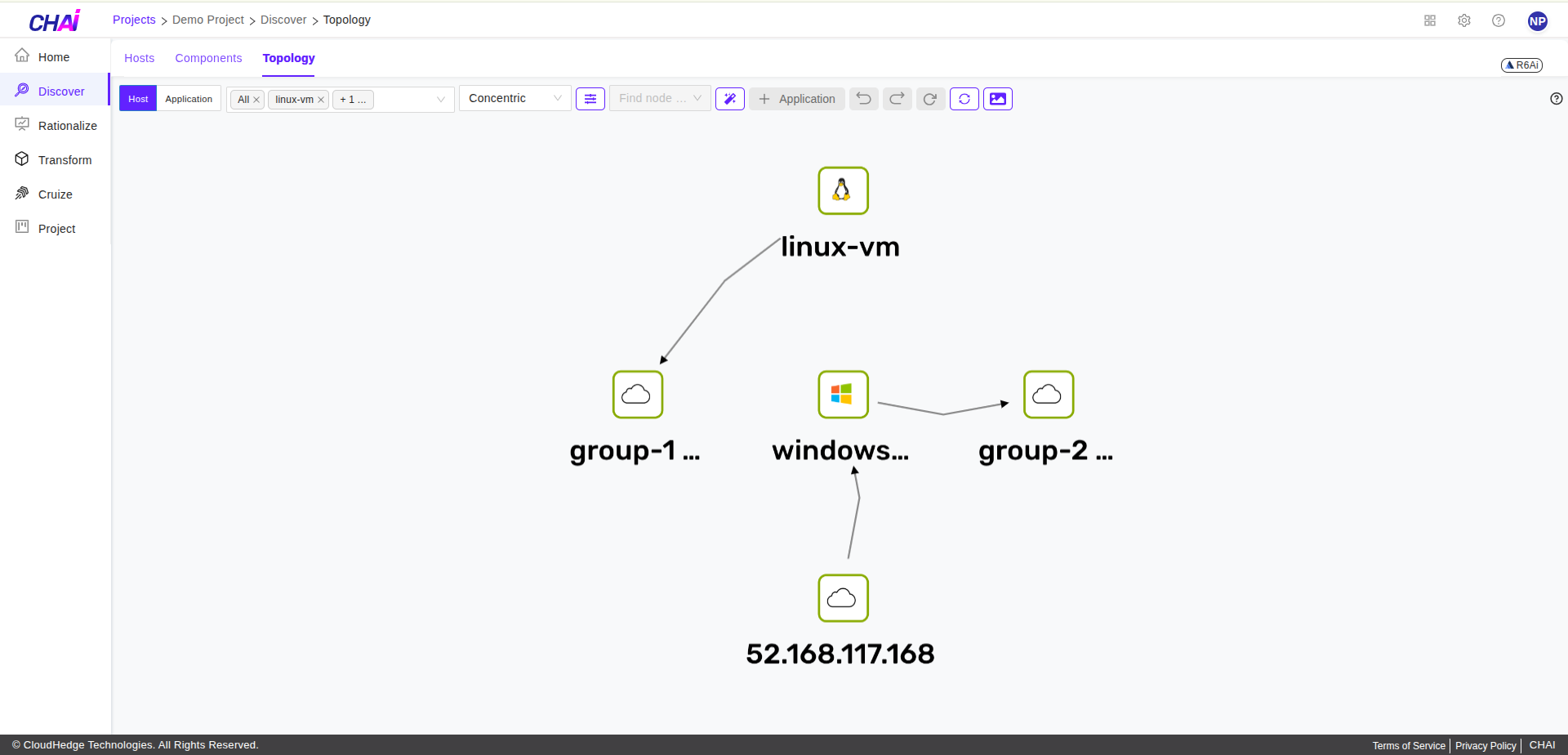
You can also change the topology view to display only nodes. For that, click the Customize icon and then select the Only hosts option. Then click the Customize button.
View Additional Details
You can view more information about processes, hosts, or applications by selecting the component and then double-clicking on them.
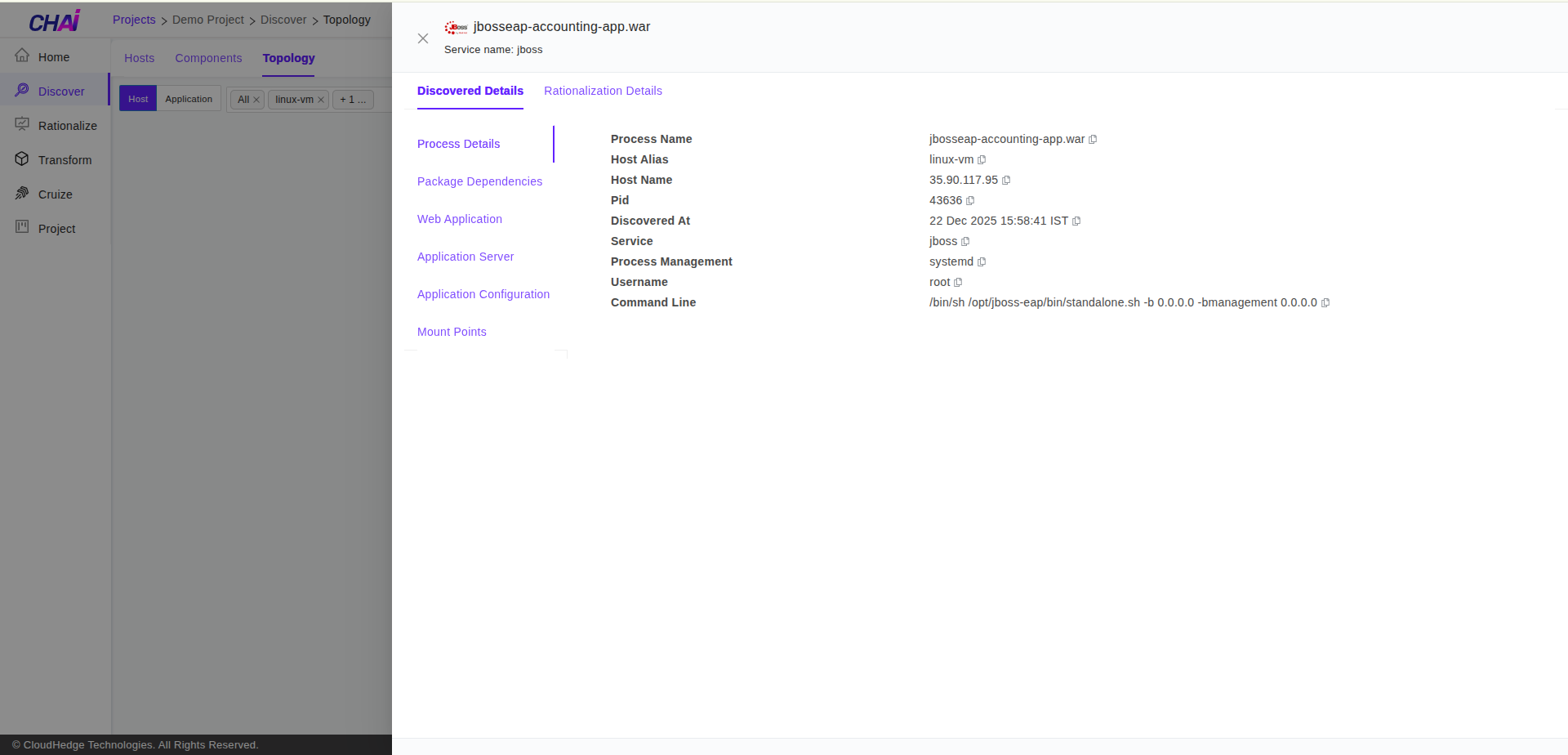
Example:
In the above image, the user has double-clicked on jbosseap-accounting-app.war.