Discover WebLogic
Understanding WebLogic Applications
WebLogic domain consists of an admin server and one or more managed servers hosting the J2EE applications. The managed servers can be part of the WebLogic cluster or standalone servers. A WebLogic application running on a host will have its dependencies on the container configurations such as data sources, JMS modules, shared application libraries, server configurations, etc.
Discover WebLogic Applications
When the host machine is running the WebLogic admin server, the Discover Host feature not only collects all the information from the host machine such as system information, process information, memory information, etc., but also scans the WebLogic domain information for all the applications that can be containerized into separate independent containers.
WebLogic Application Discovery - A Single Phase Discovery
Discovery of WebLogic applications is a single-stage process. The discovery should be run on the WebLogic admin server.
Information About WebLogic Applications
Once the discovery of a WebLogic admin server host is done, CHAI™ UI lists each application that is ready for individual containerization. The following information is revealed by the CHAI™ UI for each application:
- The WebLogic application information
- The shared application libraries on which the WebLogic application depends
- The server configurations on which the application is running. In the case of an application deployed on a WebLogic cluster, the configuration info of any one server is taken as a template, as the assumption is that the servers in the cluster will probably have the same configuration
- The application configurations like data sources and JMS modules that are deployed on the server/cluster
WebLogic Application Server Objects Supported for Transform
| Objects | Discover | Transform |
|---|---|---|
| Shared Application Libraries | Yes | Yes |
| Server Certificates | Yes | Yes |
| Data Sources | Yes | Yes |
| JMS Modules | Yes | Yes |
| JMS Server | No | No |
| Cluster | Yes | No |
| Security Realms | No | No |
Process Flow for Discovery of WebLogic Applications
- Add WebLogic admin server in discovery host
- Prerequisites check on discovery host
- Phase 1 discovery
- Transform a WebLogic application into a container
To find out about Linux host prerequisites, please click here.
WebLogic Applications Discovery
Step 1: Add Project
In the landing page, click Add Project. Add respective details and click Save. This will take you to the discover page.
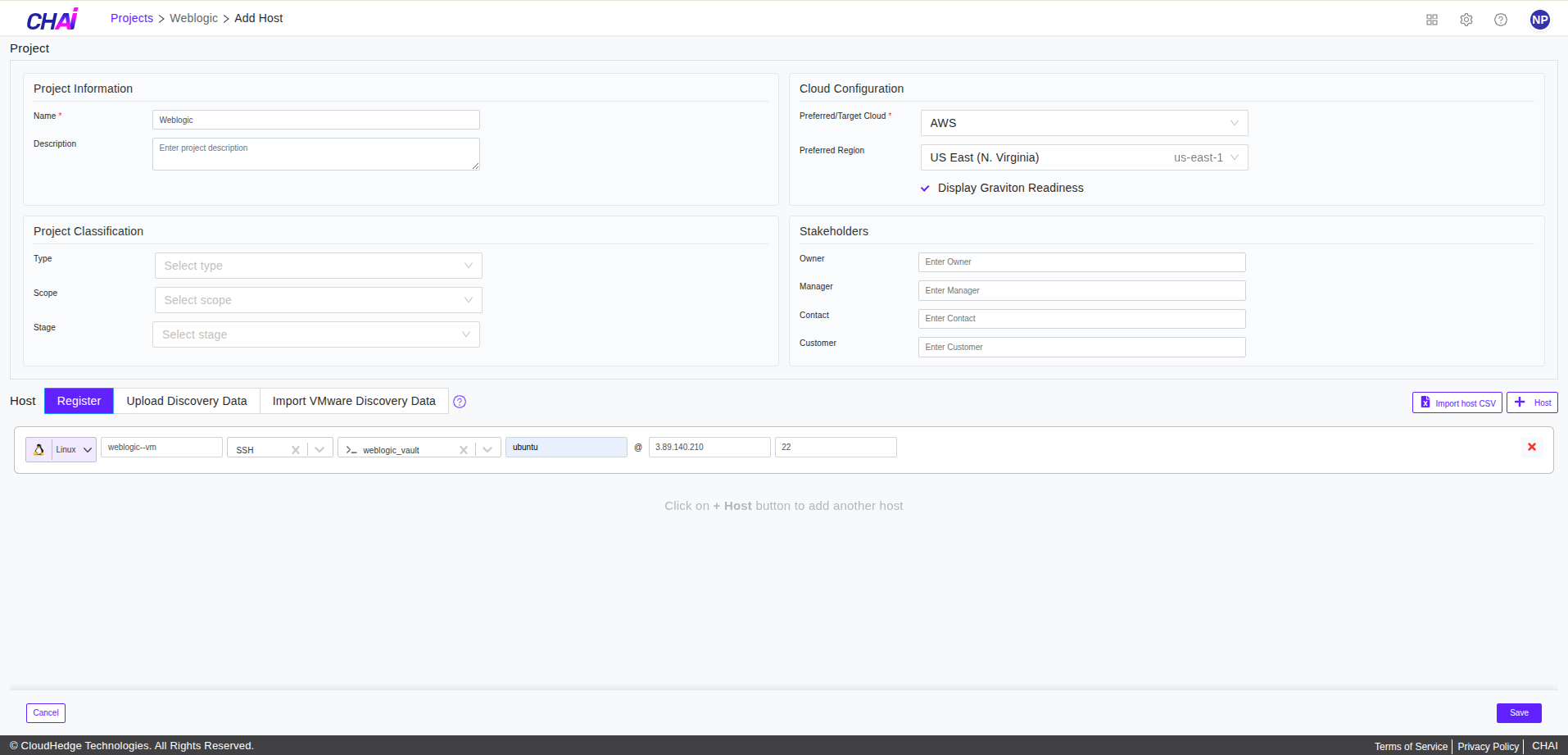
Step 2: Check Connection
Click on the 3 horizontal dots beside the host and click Check Connection and wait for a few seconds.
Note: - You will get a success message in a few seconds - This step is optional. This step is just to make sure that the connection is established successfully
Step 3: Check Prerequisites
Click the Check Prerequisites button as shown in the image below and wait for a few seconds.
You can see the prerequisites logs from the Logs section at the bottom when the prerequisite check is started as shown in the image below.
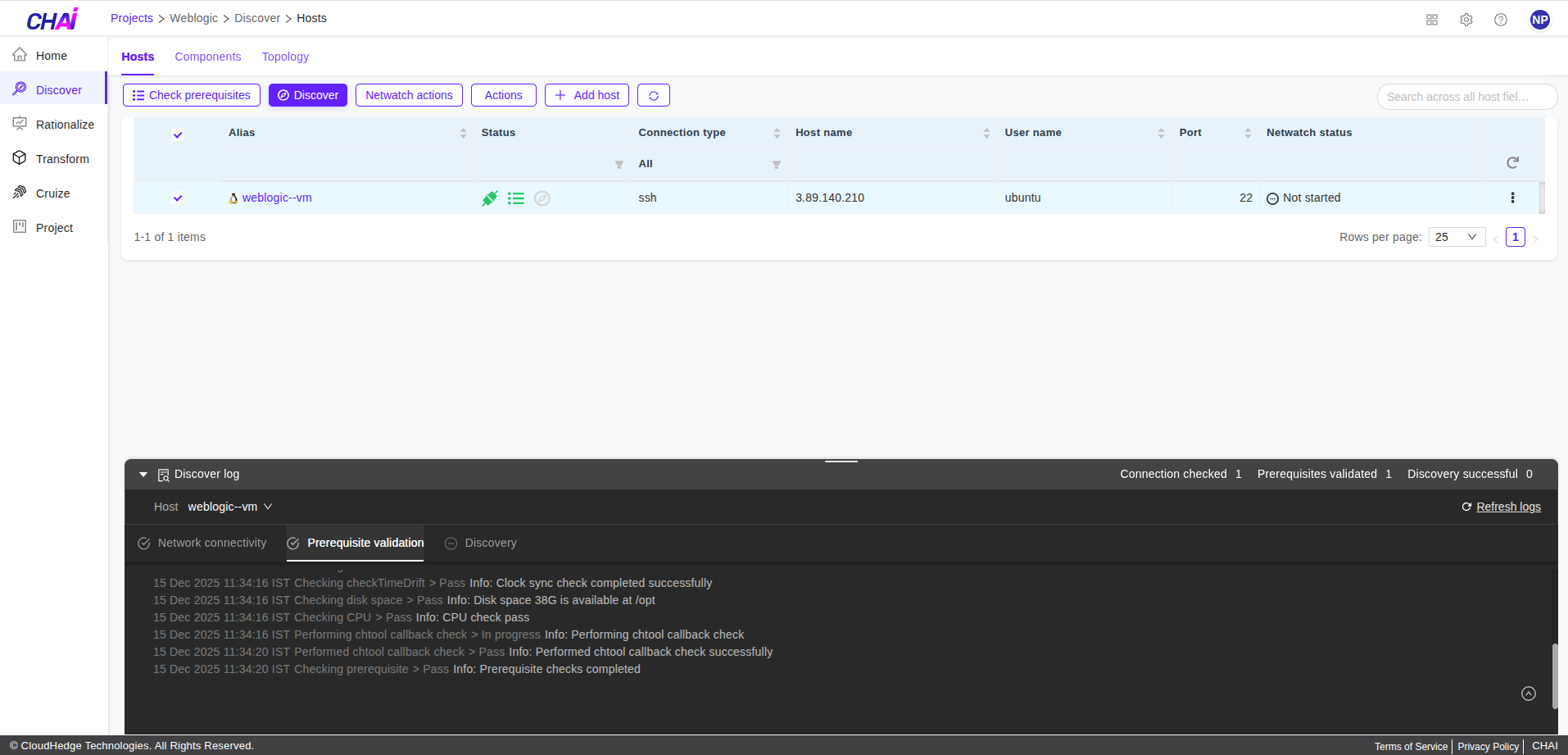
Logs are divided into 2 parts:
- Network Connectivity Checks: Shows the network connectivity checks on the host machine
- Validating Prerequisites: Shows the checks if all the prerequisites are available or not
Step 4: Edit the Ignore List (Optional)
You can edit the ignore list before starting a discovery by clicking on the Process Ignore List button as shown in the image below. The ignore list is used to skip the discovery process from analyzing these processes on the host. Do not ignore the java and startWebLogic.sh processes. Using this feature, you can include or exclude the processes for discovery as shown in the image below.
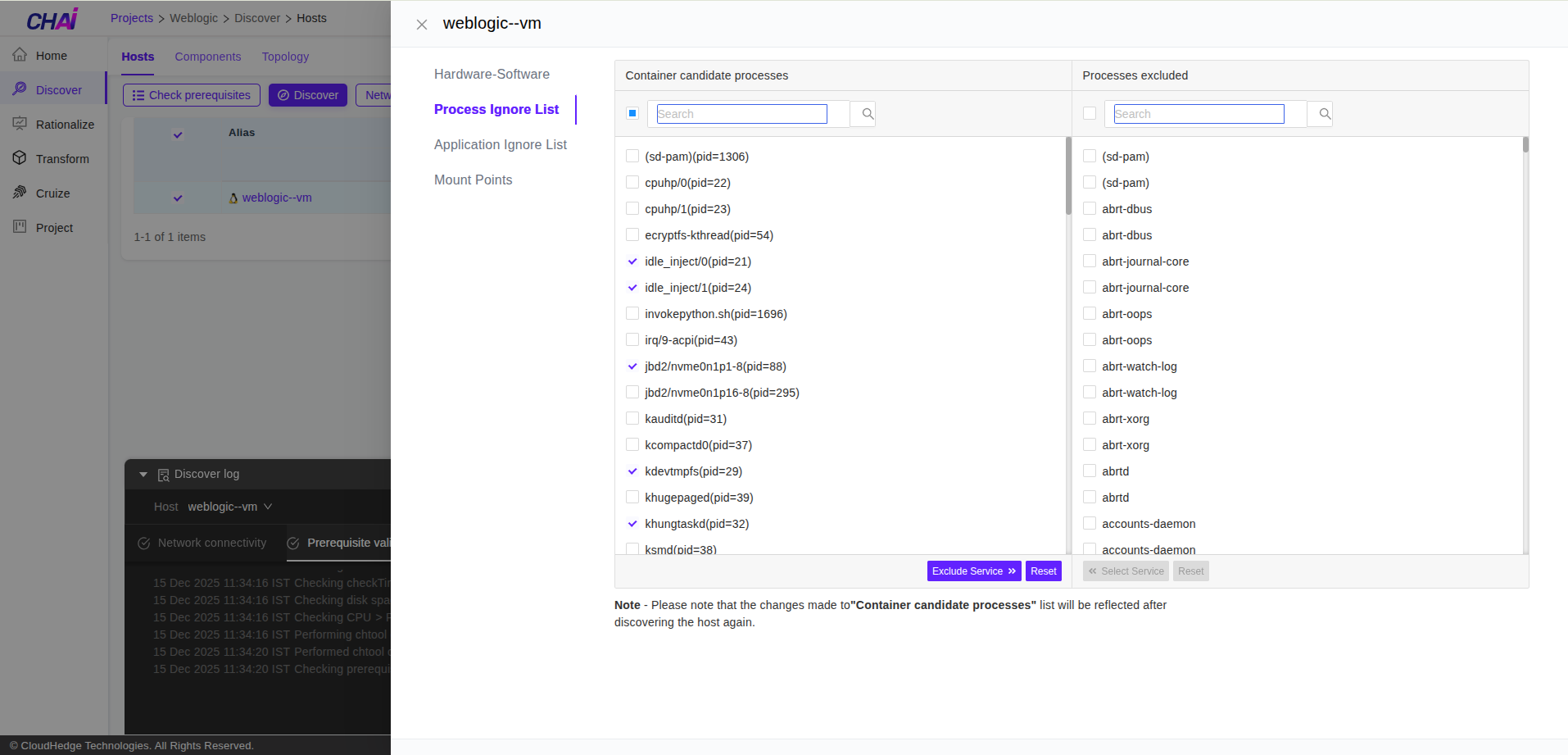
Notes: - You can also edit the ignore list after a discovery is done - Any modification done in the ignore list after discovery will require the discovery for the host to be performed again
Step 5: Edit the Application Ignore List (Optional)
You can edit the application ignore list before starting a discovery by clicking on the Application Ignore List tab as shown in the image below.
The application ignore list is used to name the applications that you want to containerize.
Using this feature, you can specify the application names only which are to be included for discovery, as shown in the image below. All the other applications will not be scanned by the discovery process.

Step 6: Discover
Click the Discover button and wait for a few seconds.
- You will get the message "Triggering Discovery"
- After a few minutes, you will see the discovery status as Completed if all the prerequisites are met
- You can see the discover logs from the Logs section at the bottom when the discover process is started as shown in the image below
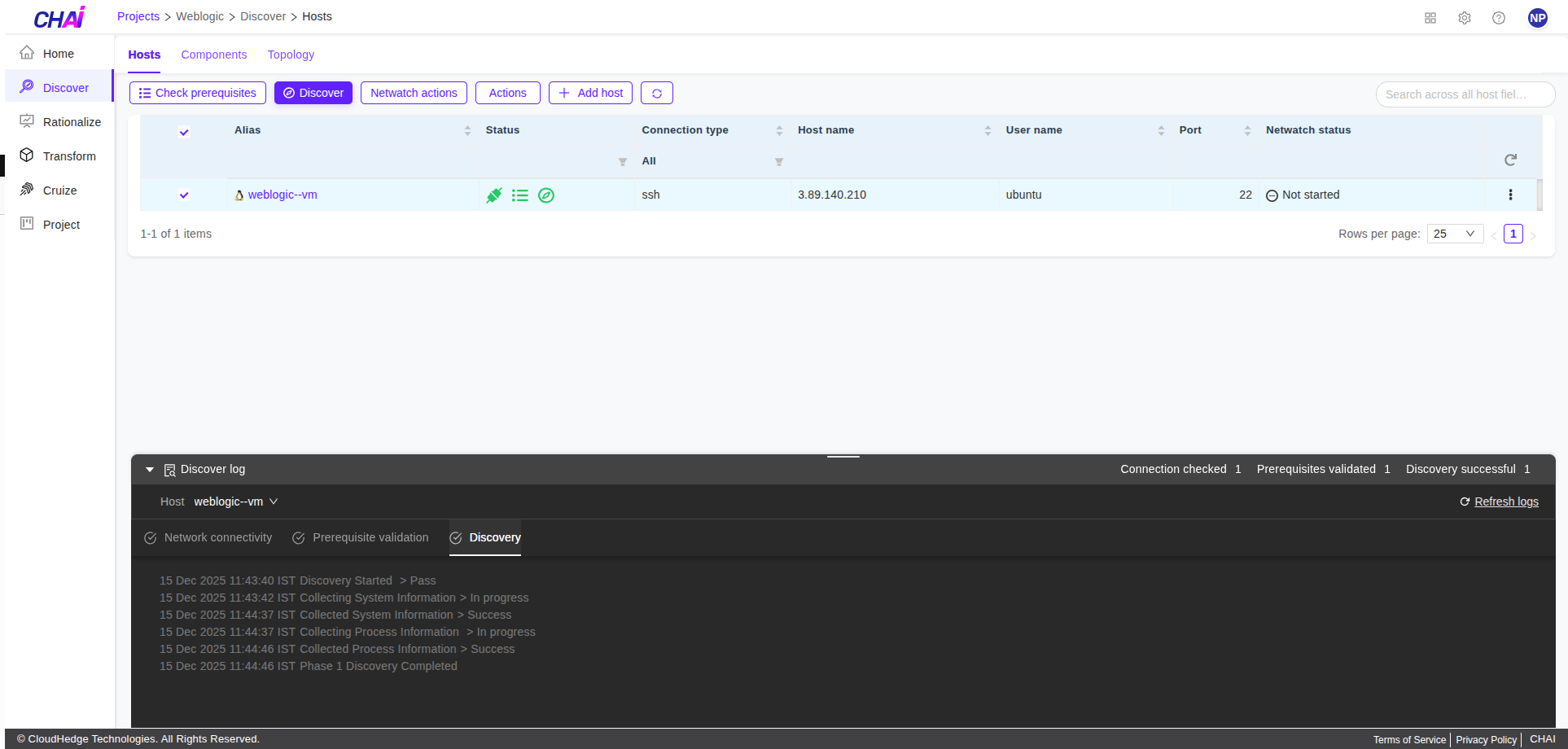
Logs are divided into 3 parts (including the prerequisites):
- Network Connectivity Checks: Shows the network connectivity checks on the host machine
- Validating Prerequisites: Shows the checks if all the prerequisites are available or not
- Collecting System State Information: Shows the logs for collecting all the system information
Once the discovery is completed, you will be able to see all the processes discovered, including the WebLogic processes (./startWebLogic.sh or java), and the web applications that are discovered from the WebLogic domain as shown in the image below.
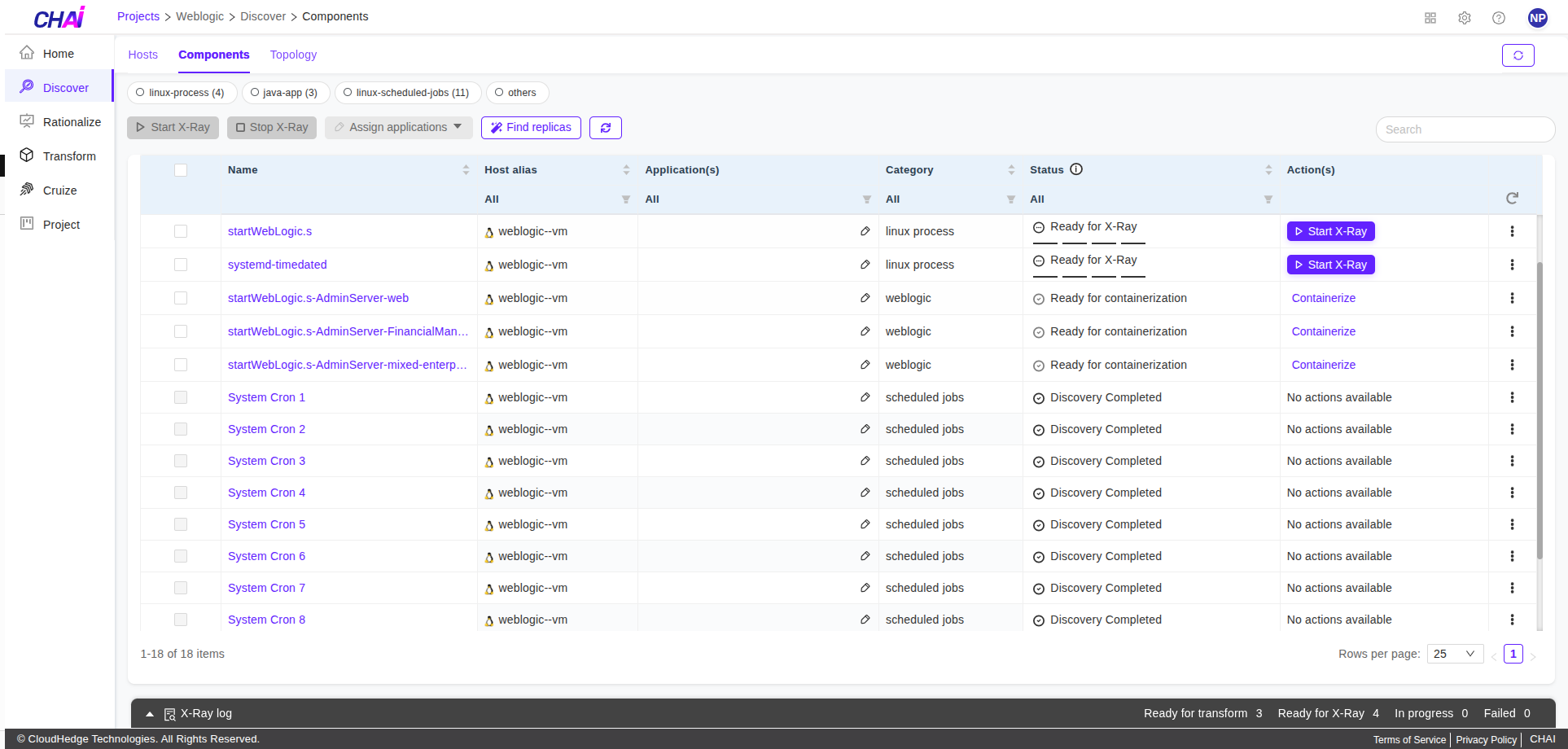
The web applications that are discovered from the WebLogic domain are listed in the table with the process name formatted as java-<Cluster/Server name>-<applicationName>. For example, if an application say 'appX' is deployed on one standalone server say Server-1, and a cluster Cluster-0, then the table will show two entries for the application with names as java-Server-1-appX and java-Cluster-0-appX. This helps you to choose the application to transform with the specific server settings or the cluster settings.
Step 7: View Web Application Information
You can view the web application information specific to WebLogic application by clicking on the name of the application (More Info) under the Name column. The information screen with tabs will be shown as below:
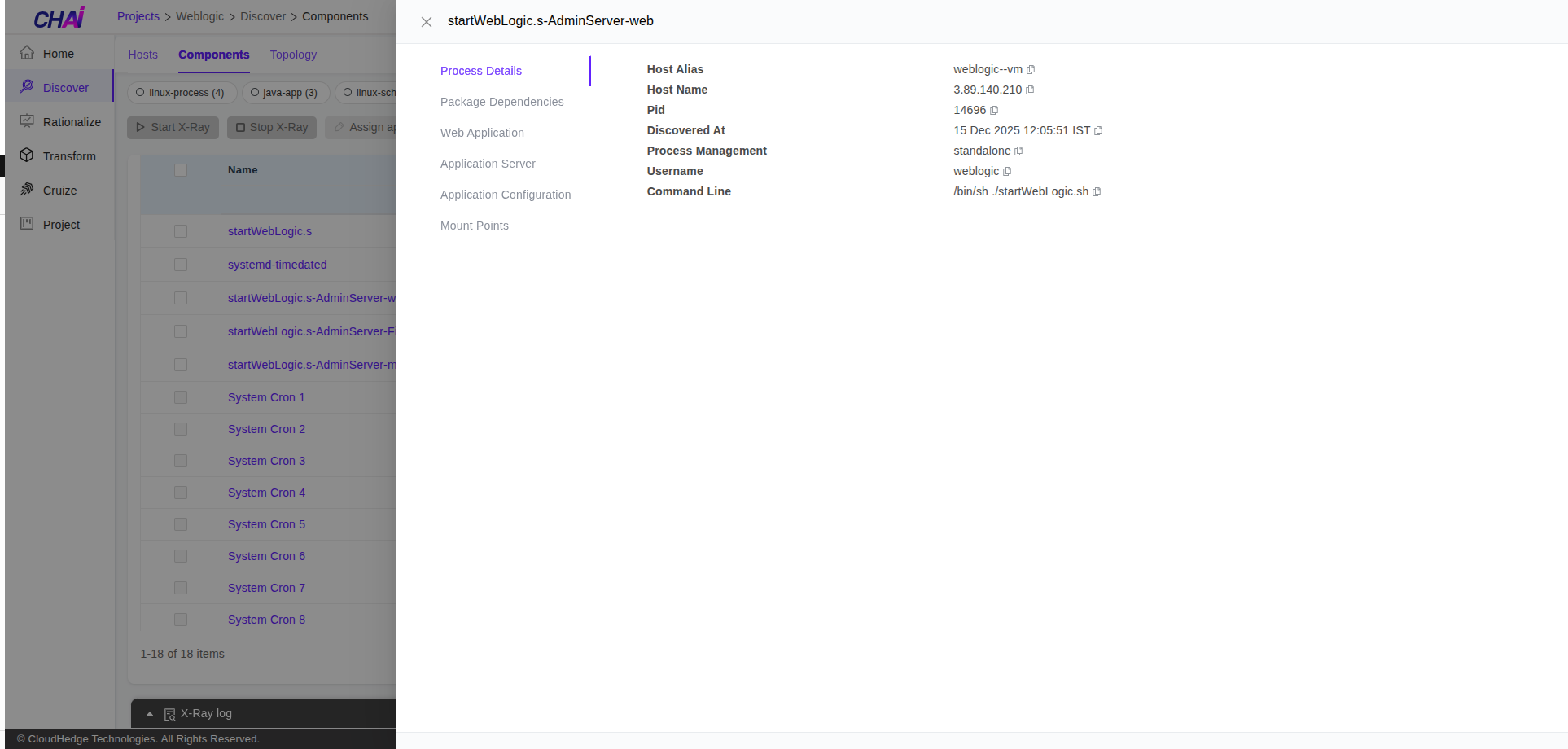
Process Details Tab
This tab shows the details of the process which enabled discovering the applications. This will usually be the WebLogic admin server process as the discovery is run on the admin server.
Web Application Details Tab
This tab shows the details of the web application as shown below.
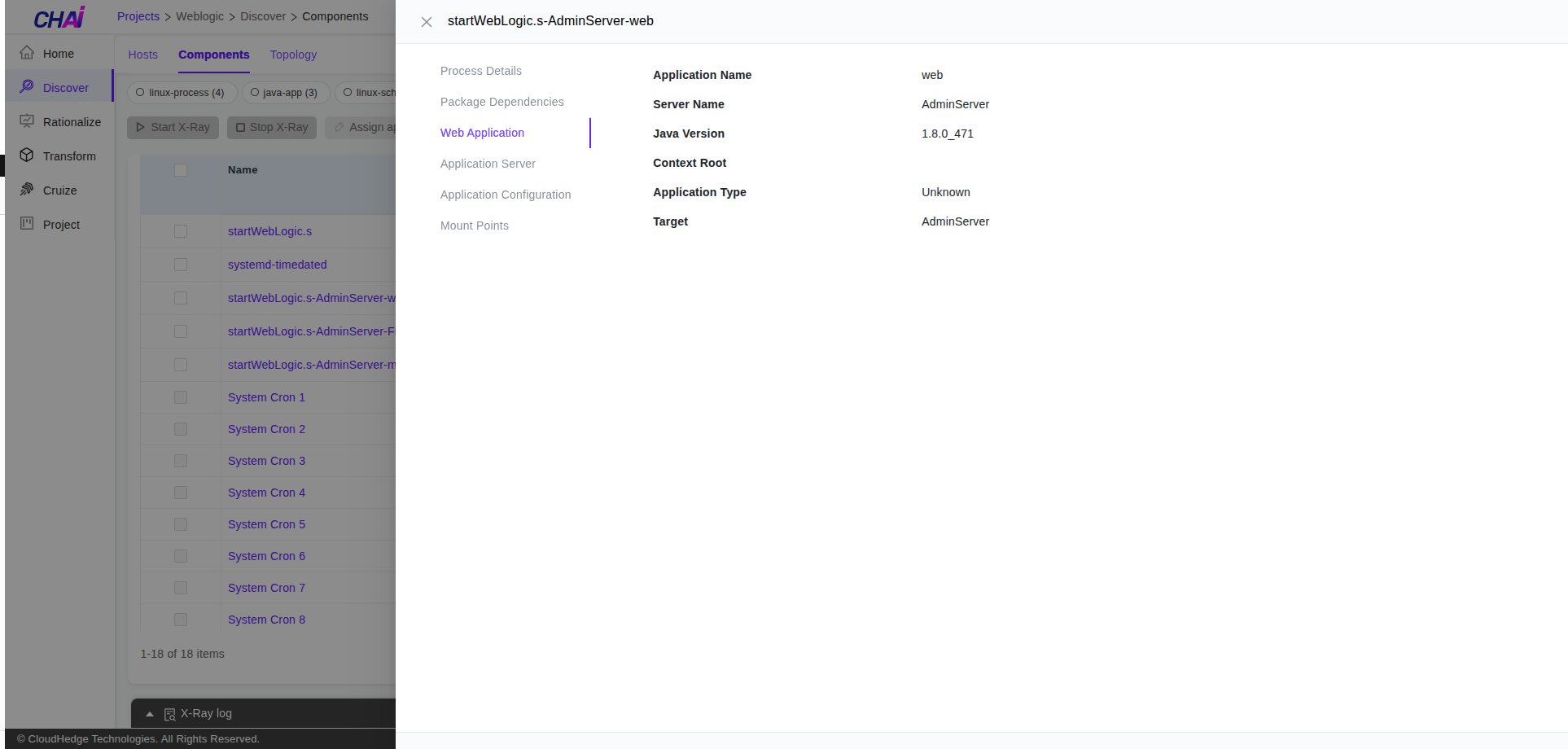
- Application Name: Shows the name of the application. This is the same as that shown in the process table that is clicked. The formation of the application name includes the name followed by
#<specification version>@<app/library version> - Server Name: Shows the name of the target server for this application
- Java Version: Shows the version of Java used by the WebLogic admin server process. Assuming the same version is being used across all the servers in the WebLogic domain
- Context Root: Shows the context root of the web application if specifically defined in weblogic.xml of the war/ear
- Location: Shows the location of the application archive (war/ear). This application archive is copied over to the container for deployment
- Dependent Shared Libraries: Shows the list of shared application libraries detected on the cluster/server on which the application is also targeted. The assumption is that the application may refer to any of these dependencies as they are all existing on the same target
Application Server Tab
This tab shows the details about the target server or cluster-specific configuration information. The assumption is that the Java version will be the same across all servers in the domain. Also, the servers in the cluster will all have the same configurations.
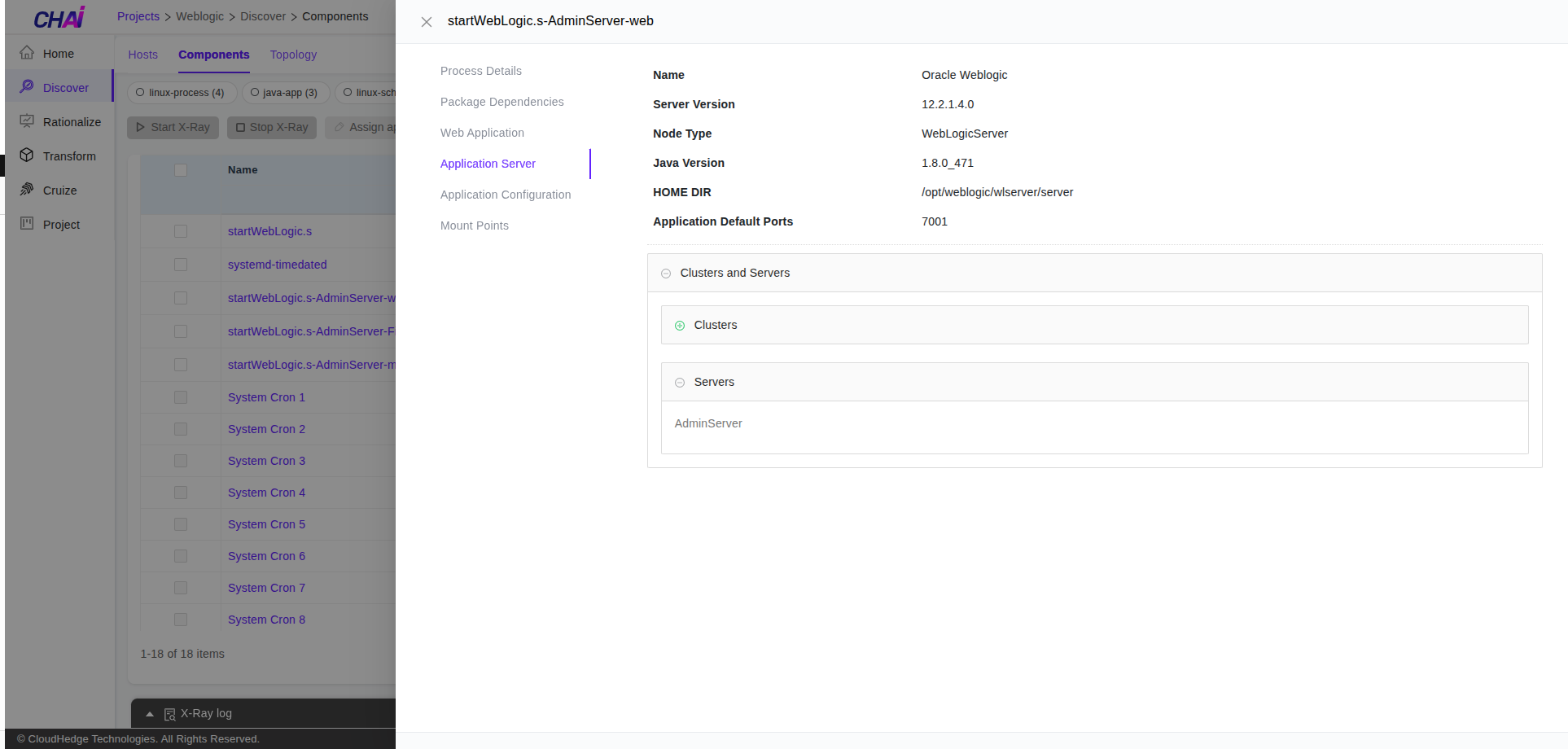
- Name: Shows the name of the application server; in this case it is Oracle WebLogic
- Server Version: Shows the version of the Oracle WebLogic application server of the process detected on the discovered system (i.e., WebLogic admin server). Assumption is that the version of Java and the WebLogic server is the same across all the server instances of the domain
- HOME DIR: Shows the WebLogic server process's home directory
- Application Default Ports: Shows the ports (SSL and non-SSL) being used by the target server for this application
- Clusters & Servers List: Shows the list of all the servers and clusters that this application is targeted on
Application Configuration Details Tab
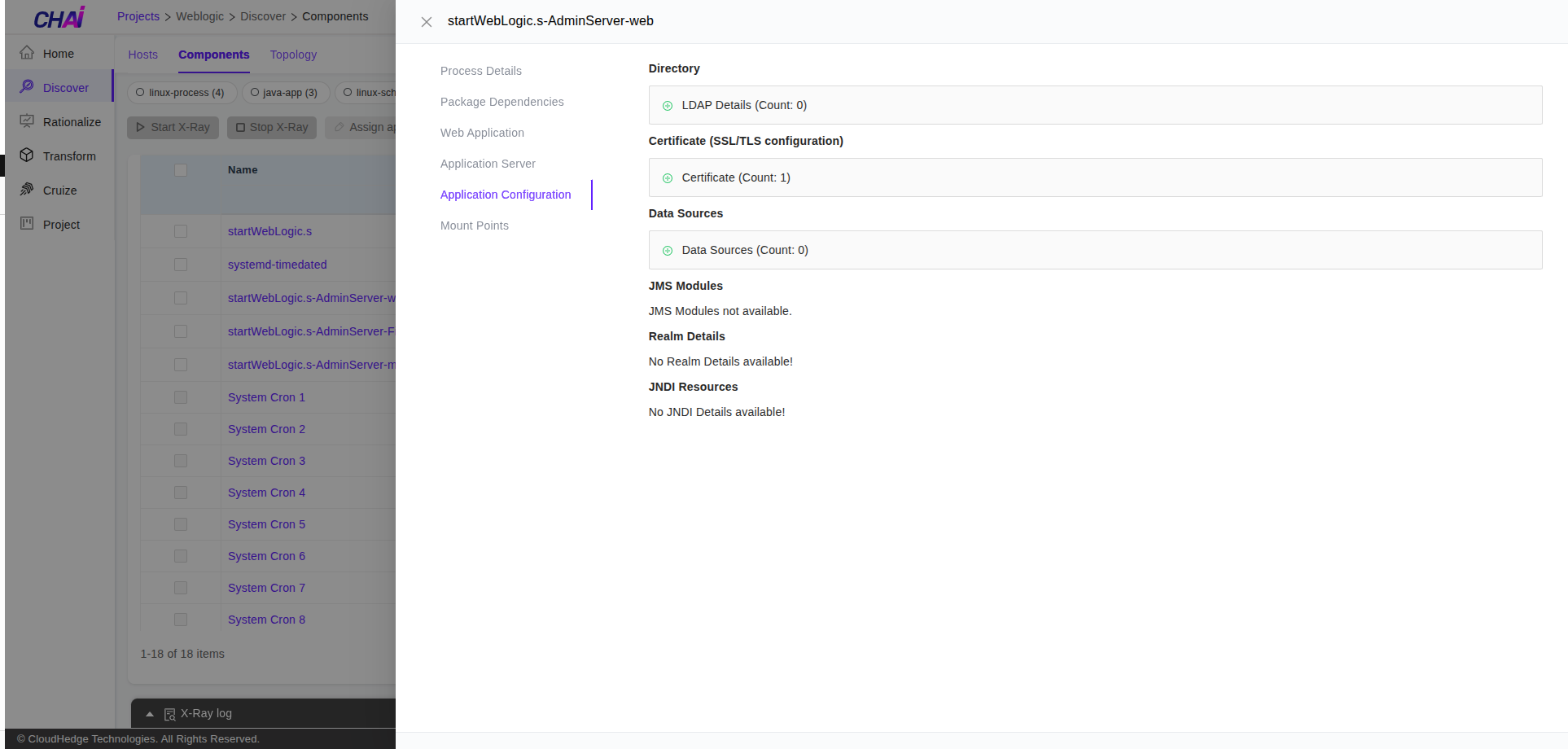
- Certificate Details: Shows the WebLogic server's SSL configuration. It displays the identity key store file and the trust store details configured on the WebLogic server. More details about the WebLogic SSL configuration can be found here
- Data Sources: Shows the list of data sources configured on the server on which this application is targeted. All these data source configurations are carried over to the container during transformation of this application
- JMS Modules: Shows the list of JMS modules targeted on the server on which this application is also targeted. These JMS module configurations are carried over to the container with the assumption that the JMS server will remain running as is and the container will be able to use the existing JMS server for its queues/topics. The container will be configured with foreign server connection factory, configured to connect to this existing JMS server
Step 8: Next Step - Transformation
The next step will be transformation of the WebLogic application. Please click here.
Force Discover
You can also force discover the host if the discovery process is taking a long time and you want to re-initiate the discovery.
To force discover the host, you will have to click the Force Discover button.